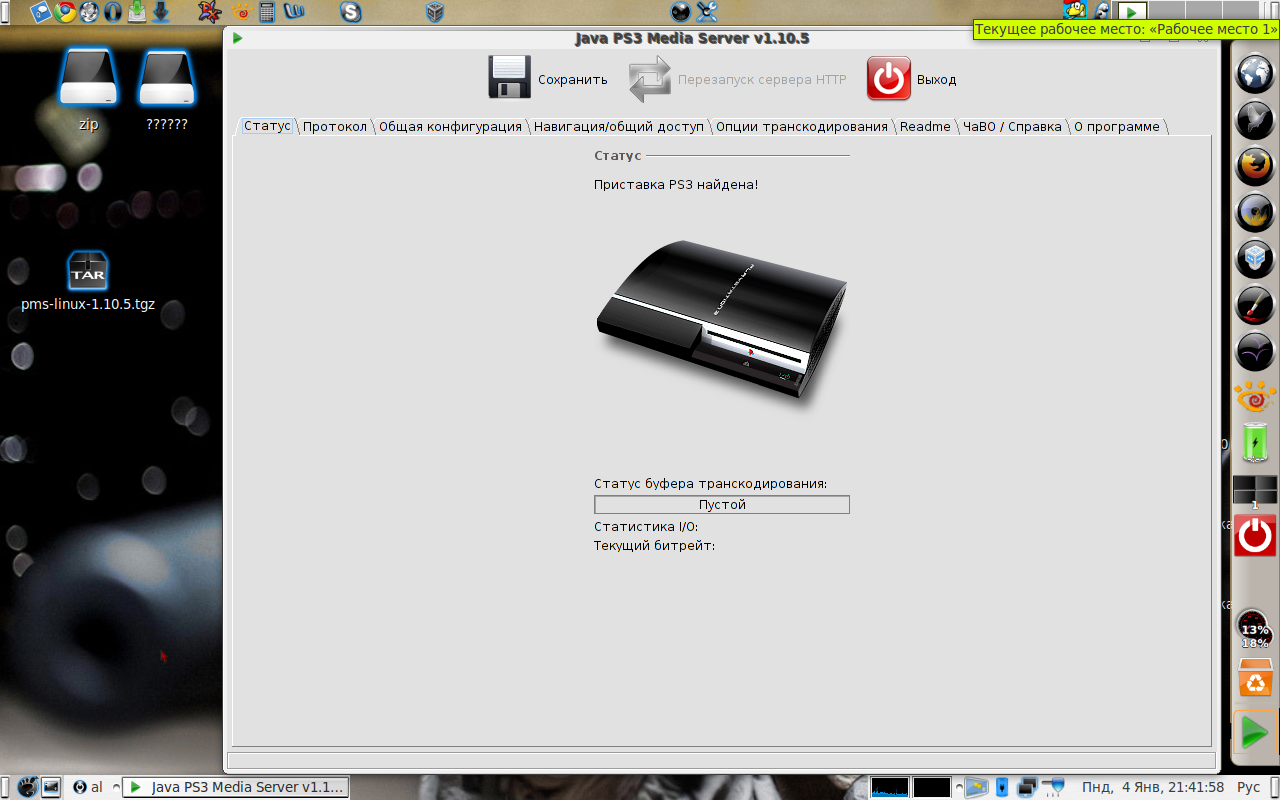
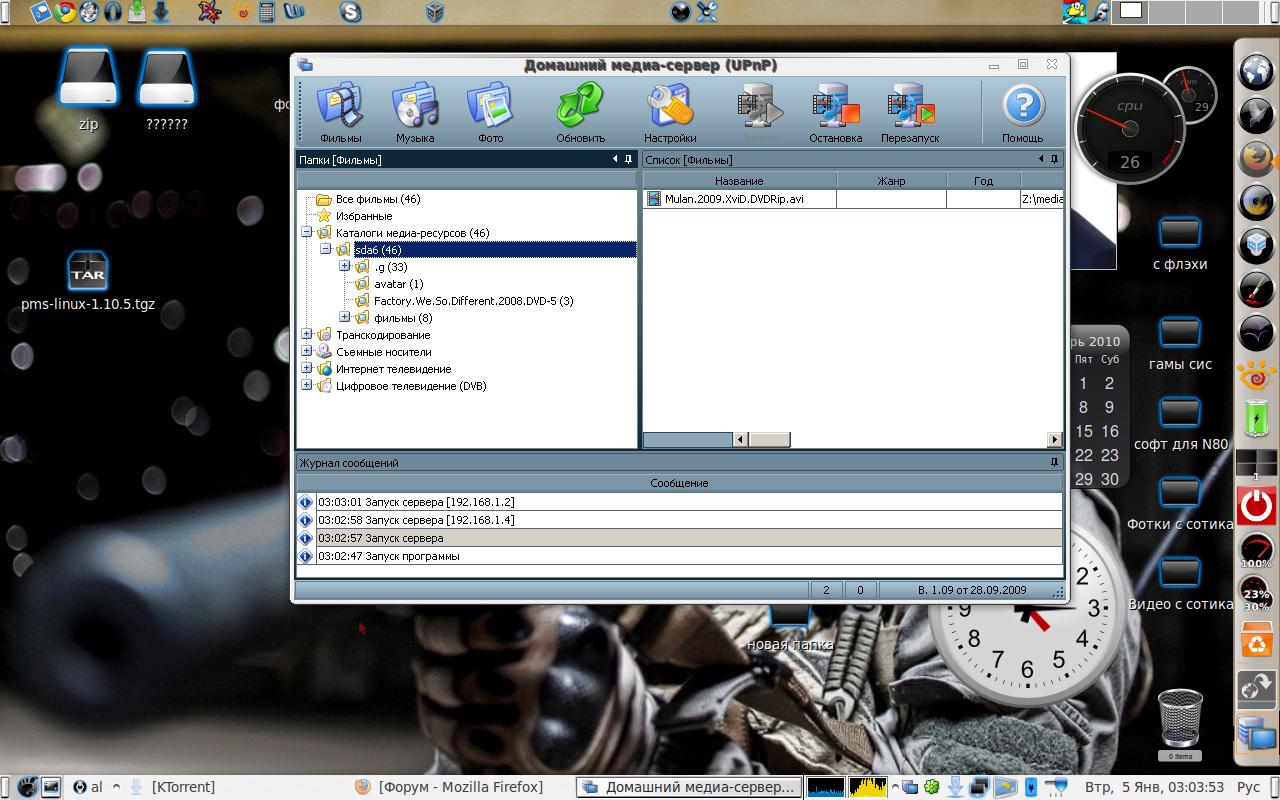
Давно хотел установить PS3 медиа сервер на Убунту. Но не давало малые знание по Линукс ОС. Тут на днях как то вспомнил про эту софтину. И с пол пинка завел её. Немного повозился с настройкой и вауля. Запустил и графическую оболочку софтины и настроил её для нормальной работы. Хотя ???? В инете нашел и замечательную инструкцию по установке PS3 Медиа Сервер - http://ps3mediaserver.org/forum/viewtopic.php?f=3&t=4253&start=0 . Правда и искать не пришлось. Она на форуме тех. поддержки.
Я опишу по своему. По "чайнековски". Как научили на одном замечательном ресурсе.
Начнем с основного.
Качаем саму программ с офф. сайта - http://ps3mediaserver.googlecode.com/files/pms-linux-1.10.5.tgz
Далее просто по тупому распаковываем архив. Куда нибудь. Я сделал все по ламерски. Создал папку в директории - Домашняя папка (В ос Убунту) и с архива - pms-linux-1.10.5.tgz просто перенес туда файлы.
Далее открыл консоль и перешел в папку с распакованным PS3 Медиа Сервером.
И за комментировал запуск программы в ОС. - это я так по чайнековски.
Далее надо было сделать иконку на запуск. Не через консоль же запускать без конца.
Создаем ярлык к примеру на рабочем столе. - Правой кнопкой мыши на рабочем столе делаем кнопку запуска. Название прописываем ярлыка и в поле команда указываем /ваша папка где распакован PS3 медиа сервер/PMS.sh ( У меня к примеру так - /home/al/PS3media/PMS.sh)
Как бы всё это (это у меня). Но не всё. Самой программе ещё нужны программы для её работы. Т.к. она работает на Яве нужен JDK и ещё нужны кодеки. Вот это нужно до установить - jdk - Java HOME , mplayer, mencoder, ffmpeg.
Просто у меня все это установлено было ранее. И без лишних телодвижение заработало с пол пинка.
Для установки всего необходимого можно воспользоваться инструкцией на английском (сылка в первых строках топика).
Code
And now for the nitty gritty details:
1. Prerequisites[/b]
Make sure that the ubuntu restricted extras package is installed. From a terminal window, run
Code: Select all
[b]sudo apt-get install ubuntu-restricted-extras[/b]
Next, install checkinstall
Code: Select all
[b] sudo apt-get install checkinstall[/b]
This package is required to add our compiled version of mplayer to our ubuntu package repository after we compile it.
Next, we need to install ant, so that we can compile PS3 Media Server.
Code: Select all
[b] sudo apt-get install ant[/b]
2. Install mplayer, mencoder, ffmpeg
If you had a look at the readme for PS3 Media Server, you'll see that it doesn't include these in the Linux version, and they need to be installed seperately.
Open up a terminal window and run the following:
Code: Select all
[b] sudo apt-get install mplayer mencoder ffmpeg[/b]
Note that while we are compiling mplayer in the next step, we are still installing mplayer here first. We are doing this because this will install various other mplayer packages, like mplayer-fonts, that the compiler may require in the next step.
3. Compile the latest mplayer with the fix mentioned in this post: viewtopic.php?f=3&t=4224
This code is taken directly from this forum posting. In the same terminal window, run these seperate lines of code one at a time:
Code: Select all
[b] $ sudo apt-get install subversion
$ cd $HOME
$ svn checkout svn://svn.mplayerhq.hu/mplayer/trunk mplayer
$ cd $HOME/mplayer
$ CFLAGS="-O2 -fomit-frame-pointer" ./configure --confdir=/etc/mplayer
$ make
$ sudo checkinstall -D --install=yes --fstrans=no --pakdir "$HOME/Desktop" \
--pkgname mplayer --backup=no --deldoc=yes --deldesc=yes --delspec=yes --default \
--pkgversion "3:1.0~svn-`grep "#define VERSION" version.h | cut -d"-" -f2`"
$ make distclean[/b]
4. Compile the latest SVN of ps3 media server
I tried with the current stable release and MKV files were still very choppy. After following these steps, it seemed to resolve the issue.
First download JDK 6 from Sun. We need this to compile PS3 Media Server. Go to Google JDK 6, and grab the latest JDK from Sun. As of this writing it is JDK 6 Update 16, and the filename I downloaded for 64bit was jdk-6u16-linux-x64.bin
Once the file has finished downloading, in your terminal window navigate to your Downloads
Code: Select all
[b]cd ~/Downloads[/b]
and run
Code: Select all
[b] sh ./jdk-6u16-linux-x64.bin
[/b]
Read the EULA and accept it. Once it finishes the install, we need to set our Java HOME to the jre directory within the JDK we just installed. To do that run:
(replace this directory with the valid directory you just installed JDK to)
Code: Select all
[b]JAVA_HOME=/home/YOUR_UBUNTU_USERNAME/Downloads/jdk1.6.0_16/jre[/b]
then export the JAVA_HOME variable so it is available to other applications in this terminal session.
Code: Select all
[b] export JAVA_HOME[/b]